
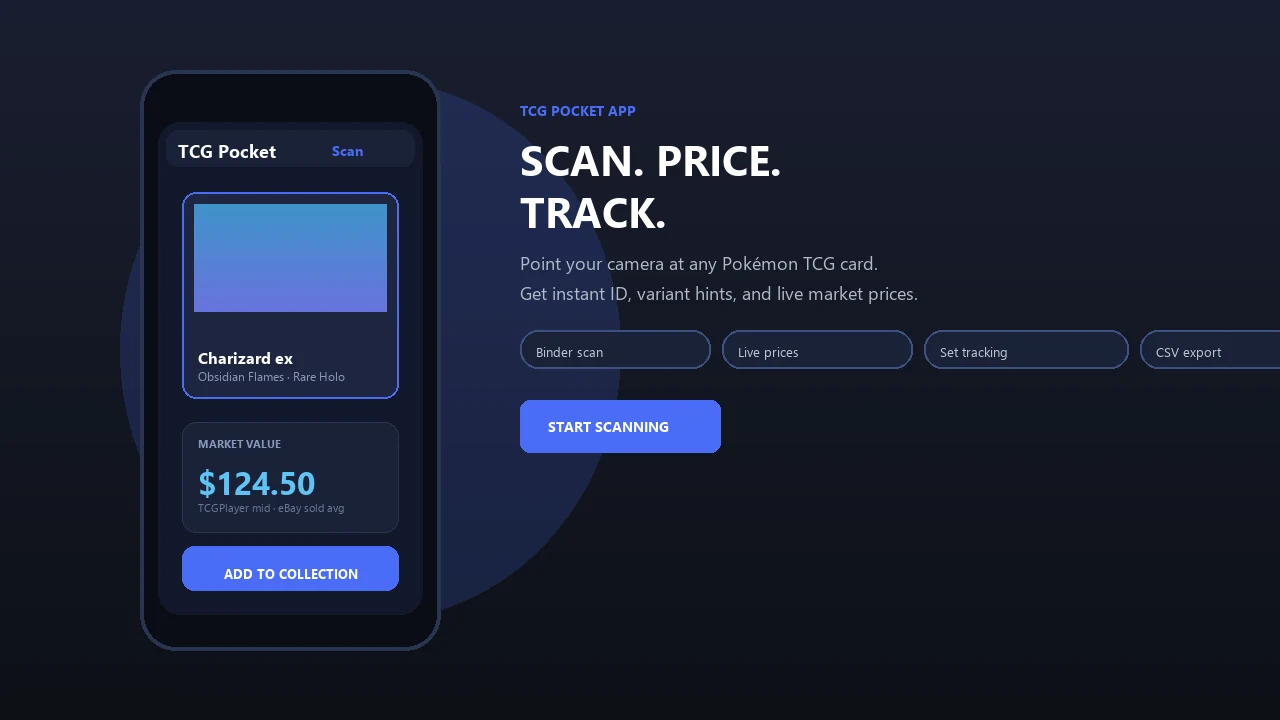
Scan physical Pokémon cards without installing an iOS app. Upload a card image from your computer or use a compatible device camera to identify cards and review available market information in your browser.
Pokemon Card Scanner runs on iOS and web. Get pokemon card scanner web when you are ready to scan.
What Is a Pokemon Card Scanner Web App?
A Pokemon card scanner web app is a browser-based tool for identifying physical Pokémon trading cards from photos. Instead of relying on a phone-only workflow, you can open Pokemon Card Scanner on the web, select a card image, and review the likely match. This is useful for collectors working from a desktop, laptop, tablet, or another device with a modern browser.
In this category, the word scanner usually covers more than camera detection. Collectors often expect identification details such as the card name, set, collector number, rarity, variant, and an available market estimate. PokeScope and MyPokemonScanner, for example, position scanning alongside pricing and collection tools rather than treating recognition as the only step.
Browser scanners are an established product format. The open-source Pokemon-Card-Scanning-Webapp project describes a responsive camera interface designed for mobile and desktop use, while MyPokemonScanner presents a browser-native approach. Pokemon Card Scanner brings this practical workflow to collectors who prefer iOS or web access.
How to Scan a Pokémon Card in Your Browser
Start with a clear image of one physical card. You can upload a photo already stored on your computer or, when supported by your browser and device, capture an image with a camera. A clean image helps the scanner compare visible artwork and printed card details with possible matches.
- Place the card on a plain, contrasting background with good, even lighting.
- Keep the entire card inside the frame, including the borders and collector number.
- Avoid glare across the name, artwork, set symbol, or lower card text.
- Upload the image to Pokemon Card Scanner and review the suggested result.
- Confirm the set, card number, rarity, language, and variant before using a price estimate.
If the first result is uncertain, crop away unrelated objects and try a straighter photo. Cards with similar artwork can appear in several sets, products, or variants, so the printed collector number is often important when confirming the correct edition.
A Practical Workflow for Desktop Uploaders
The web scanner is particularly useful when card photos are already stored on a computer. Sellers, collectors, and family members sorting an inherited collection may have folders of images from a camera, shared drive, or previous cataloging session. Opening those files in a browser can be more convenient than transferring each photo to an iPhone.
For a binder project, photograph cards in a consistent order and give each file a simple name before scanning. Full binder-page images can be useful as records, but individual card photos usually provide more visible detail for identification. Sleeves and cases may remain in place if the card is readable and reflections do not cover key text.
- Create folders by binder, set, box, or scan date.
- Use one clear card image per upload when possible.
- Keep uncertain matches in a separate folder for manual review.
- Record confirmed set numbers and variants, not only card names.
Check the Card Match Before Cataloging
Image recognition can narrow down a card quickly, but visual similarity does not guarantee an exact match. Pokémon cards may share artwork while differing by set, stamp, foil treatment, promotional release, language, or collector number. Always compare the scanner result with the information printed on the physical card.
Look first at the card name and collector number, then inspect the set symbol or set code. Next, confirm whether the card is standard, reverse holo, holo, promotional, or another listed treatment. Even small variant differences can affect how a card should be cataloged and priced.
Image quality also matters. Soft focus, heavy glare, dark sleeves, angled photos, and cropped borders can hide identifying details. A second photo taken directly above the card often resolves an uncertain result. The goal is not simply to find similar artwork, but to identify the specific printing you own before adding information to your records.
Understand Pokémon Card Price Estimates
A scanner may help connect an identified card with available market information, but displayed values should be treated as estimates rather than guaranteed selling prices. Actual transactions depend on condition, variant, language, demand, seller reputation, shipping, and the marketplace used.
Pricing references also vary by region and card type. TCGplayer is commonly consulted for US single-card listings, Cardmarket is a standard reference for much of Europe, and eBay sold or completed listings can show recent transaction results. Scanner products use different combinations of these sources. Shiny says it uses TCGplayer and eBay completed sales, while Poke TCG Scanner Dragon Shield describes TCGplayer and Cardmarket pricing with historical information.
When reviewing a value, verify that the price corresponds to the exact set and treatment. Compare cards in a similar condition, and distinguish active asking prices from completed sales. Raw and professionally graded copies should not be valued as if they were interchangeable. Pokemon Card Scanner can support initial research, but a careful collector should confirm valuable or unusual cards with current marketplace evidence.
Choose Between the Web Scanner and iOS
Pokemon Card Scanner is available through the web and on iOS, giving collectors two ways to work with physical cards. The browser option suits desktop uploads, shared computers, larger displays, and users who prefer not to install an app. The iOS option is convenient when photographing cards directly beside a binder, storage box, or trade table.
Your choice can depend on where the images are stored. Use the web scanner when photos are already on a laptop or desktop, when you want to inspect details on a larger screen, or when you are processing an organized image folder. Use iOS when you want a camera-first workflow while handling the collection.
- Web: suited to file uploads, desktop review, and browser-based access.
- iOS: suited to direct card photography and portable scanning.
- Both: intended for identifying physical Pokémon trading cards, not cards from the official Pokémon TCG Pocket digital game.
Whichever option you choose, clear images and manual confirmation remain essential for reliable cataloging.