
How To Scan Pokemon Cards With a Phone Camera
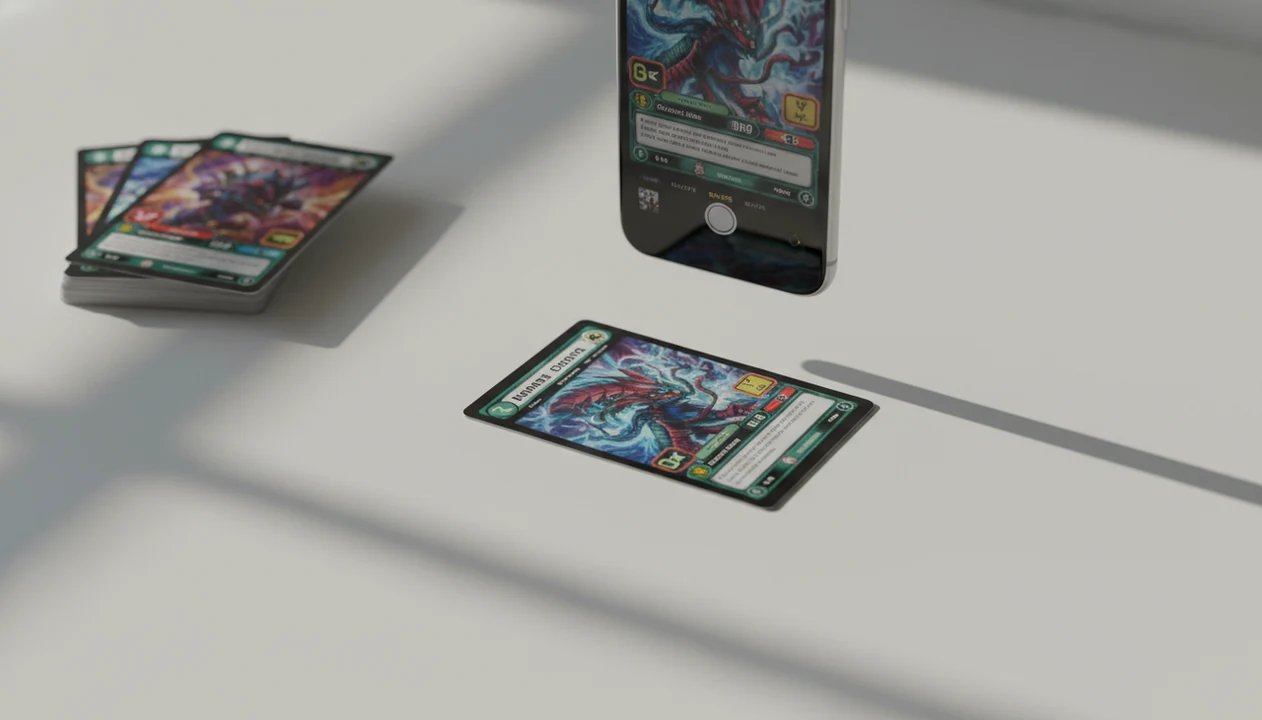
To learn how to scan pokemon cards with phone cameras, use a dedicated Pokémon TCG scanner app, place one card on a clean well-lit surface, hold the phone steady above it, and verify the set, variant, condition, and price before saving it. The default camera app can take a photo, but it usually cannot identify the exact card or add it to a collection database.
Definition: TCG Pocket App is a Pokémon card scanner app that identifies cards, checks market prices, and tracks collections for Pokémon TCG collectors.
TL;DR
- Use a Pokémon TCG scanner phone app instead of the default camera if you want identification, pricing, and collection tracking.
- Good scans depend on flat lighting, a plain background, steady framing, and a quick review of set symbols and variants.
- Scanner prices are useful estimates, not guaranteed sale prices, and high-value cards still need manual verification.
Pokemon TCG Scanner Phone Workflow at a Glance
The shortest workflow is: open a scanner app, place one card flat, align all borders, scan, review the match, then save it to your collection. A regular phone camera only captures an image; a dedicated Pokémon TCG scanner phone app compares that image to card data.
Phone scanning fits how collectors already behave. Pew Research Center reported that 85% of U.S. adults owned a smartphone in 2021 (https://www.pewresearch.org/internet/fact-sheet/mobile/), and its 2023 online-shopping research found that smartphones are now a common shopping device for U.S. adults (https://www.pewresearch.org/short-reads/2023/12/11/online-shopping-is-common-in-the-us-but-shoppers-are-growing-more-concerned-about-it/). Price checks at a card show or trade table are no longer unusual.
Still, use the right tool. Official Pokémon TCG Live support explains how to redeem code cards, but that workflow is for code redemption rather than scanning regular physical card artwork into a collection (https://support.pokemon.com/hc/en-us/articles/360001066267-How-do-I-redeem-a-code-card-in-the-Pok%C3%A9mon-TCG-Live). That difference trips up many returning collectors.
One card at a time works fastest.
Phone Camera Setup Checklist Before Scanning Pokemon Cards
- Scanner app: Use a dedicated Pokémon TCG scanner app if you want identification, pricing, and saved inventory.
- Clean camera: Wipe the phone lens, steady your hands, and keep a charger nearby for batch scanning.
- Simple surface: Use a plain white sheet, neutral mat, flat table, and soft bright light so borders read clearly.
- Glare control: Remove clutter and adjust sleeves if reflections hide the artwork, text box, or set symbol.
- Review pile: Keep a small stack for cards that need manual correction after the first scan.
The plastic crinkle of a binder page can be enough to shift glare across a sleeved holo. If you’re scanning binders often, our best pokemon card scanner for binders guide covers that setup in more detail.
Pokemon Card Scanner App Recognition Behind the Phone Camera
A Pokémon card scanner app uses the phone camera to capture artwork, borders, text zones, set symbols, and layout cues, then compares those visual signals against a Pokémon TCG card database. The technical pieces are image recognition and database matching, which simply means the app is looking for the closest known card record.
The returned result is structured data: card name, set, rarity, collector number, language, variant, and market price. That’s why a scanner is different from taking a photo for your camera roll.
Similar art, reprints, promos, foreign-language cards, and glare can still cause mismatches. We’ve seen a scan confuse two similar Pikachu prints until the set symbol was checked by hand. A scanner is most useful when it supports the full workflow: scan, verify, log, compare, and export.
A good ai-powered pokémon tcg card scanner, live market prices, and pocket-sized collection management app deliver faster identification and organization, not guaranteed grading, authenticity, or sale value.
How To Use a Phone Camera To Scan Pokemon Cards
Follow this workflow when scanning individual cards with a phone camera:
- Set one card on a clean flat background under soft, even light.
- Open your Pokémon TCG scanner phone app and choose scan mode.
- Hold the phone roughly 5 to 6 inches above the card with all borders visible.
- Tap to focus if needed, then scan once the image is sharp and glare-free.
- Review the matched name, set, number, rarity, language, and variant before saving.
- Add condition notes or manual corrections before the card enters your collection.
1. Set the card on a plain surface
A white sheet of paper often works better than a busy playmat. Patterned backgrounds can confuse edge detection.
2. Open scan mode in the app
Choose the card scan mode, not a generic photo upload, if the app offers both.
3. Hold the phone steady above the card
Keep the camera parallel to the card. A tilted phone can crop the yellow border on one side.
4. Review the match before saving
Check the set number in the lower-left corner before trusting a price match.
5. Add condition and collection details
For most collectors, scanning one verified card at a time is more reliable than batch photos because each variant match gets its own review.
Phone Scanning Settings for Pokemon Card Lighting, Distance, and Glare
How do you get cleaner Pokémon card scans with a phone camera? Use bright indirect light, keep the card flat and parallel to the phone, and place it on a plain white or neutral background.
Harsh overhead light creates white streaks across holo foil. Ring-light glare bouncing off a reverse holo through a nine-pocket binder page can make the artwork look like a different print. Move the light to the side, or tilt the phone slightly only after you’ve kept the card borders visible.
Avoid textured sleeves, curved binder pages, hand shadows, and cluttered tabletops. Removing a card from a sleeve may help if the sleeve is cloudy or reflective. Don’t over-handle valuable cards just to improve a scan, though. For binder workflows, the how to scan pokemon cards through binder sleeve guide explains when sleeve scanning is safer.
Pokemon Card Phone Scan Results You Must Verify
- Identity: Verify the card name, set symbol, collector number, rarity, language, and variant before saving.
- Variant: Reprints, alternate arts, holo, reverse holo, promos, and near-identical artworks can produce wrong matches.
- Condition: App condition labels are rough notes, not professional grading.
- Price: Live market prices are estimates based on market data, not guaranteed sale offers.
- Fallback: Use manual search or manual add when the scan match looks wrong.
The green sold-price filter on eBay tells a different story than active asking prices. A raw card listed for $80 may have recent sales near $35, and a graded copy is not the same comparison. Scanner prices are often most useful as a first research point, not the final number. For higher-value cards, compare the app result against named price sources such as TCGplayer's Pokémon price guide (https://www.tcgplayer.com/categories/trading-and-collectible-card-games/pokemon/price-guides), PriceCharting Pokémon card pages (https://www.pricecharting.com/category/pokemon-cards), and eBay sold listings before treating a scan value as reliable.
Pokemon TCG Scanner Phone Mistakes That Cause Bad Matches
Default camera mistake: The default camera app can photograph a Pokémon card, but it will not automatically identify the set, variant, and price without scanner software.
Lighting mistake: Dim rooms, harsh glare, and patterned backgrounds can hide borders and text zones. Surface scratch across holo foil is especially easy to misread under a bright lamp.
Framing mistake: Cutting off card borders or tilting the phone at an angle gives the app less layout information.
Batch mistake: Scanning multiple cards at once fails when the app expects one card.
Trust mistake: Saving the first match without checking set and variant details causes bad collection data.
Price mistake: A scanned market value does not mean the card will sell instantly for that amount. For price-only research, compare scanner data with a best app for pokemon card prices guide.
Pokemon Card Collection Workflow After Each Phone Scan
After each verified scan, save the card into a digital collection instead of leaving loose photos in your camera roll. A photo folder won’t track duplicates, set completion, raw versus graded status, or changing market estimates.
Use folders, binders, tags, or lists for sets, trade binders, graded cards, and duplicate stacks. One practical setup is a binder tab labeled by expansion, with duplicates stacked beside the laptop for later export. Messy, but it works.
Over time, scanned cards become inventory. You can review binder gaps, prepare trade lists, check collection value, or export a CSV before selling. A collection manager is most useful when it keeps scanned Pokémon TCG cards tied to price sources, variant notes, and exportable inventory records.
For binder-heavy collectors, an app that scans pokemon card binders is usually easier than rebuilding the same list by hand.
Limitations
Phone scanning is useful, but it is not final authority. Treat the app result as a starting point, not the final word.
- Poor lighting, glare, camera shake, cluttered backgrounds, and cropped borders can break recognition.
- AI may confuse reprints, alternate arts, promos, near-identical artwork, or foreign-language variants.
- Newest releases and niche promos may not appear in every database immediately.
- Condition estimates from a quick scan are subjective and not a replacement for grading.
- Market prices can lag fast-moving demand and are not guaranteed sale prices.
- Official Pokémon digital apps do not scan normal physical card artwork into an in-game collection.
- Manual correction remains necessary for valuable, rare, damaged, or unusual cards.
A graded label under a bright lamp can look cleaner than the raw card inside deserves. Check the card, not just the scan.
FAQ
Can phones scan Pokemon cards?
Yes. Phones can scan Pokémon cards when paired with a dedicated Pokémon TCG scanner app that uses the camera for recognition.
What app scans Pokemon cards?
Pokémon card scanner apps identify cards, show price estimates, and save collection records. TCG Pocket App is one option for scanning and collection management.
Can iPhone scan Pokemon cards?
Yes. iPhones can scan Pokémon cards through compatible scanner apps that use the phone camera.
Can Android scan Pokemon cards?
Yes. Android phones can scan Pokémon cards through compatible scanner apps that use the phone camera.
Can Pokemon TCG Live scan cards?
Pokémon TCG Live scans code cards for redemption. It does not scan regular physical card artwork into a collection.
Are Pokemon card scanners accurate?
Pokémon card scanners are useful, but they can misread cards because of glare, variants, reprints, or poor framing. Always verify the set and variant.
Can scanners price Pokemon cards?
Scanner apps can show market price estimates for Pokémon cards. Those estimates are not guaranteed sale values or offers.
Should I scan sleeved cards?
Sleeved scanning works when the sleeve is clear and glare-free. Unsleeved scanning may be more accurate when sleeve texture or reflection blocks card details.