
How To Scan Pokemon Cards On Android Phones
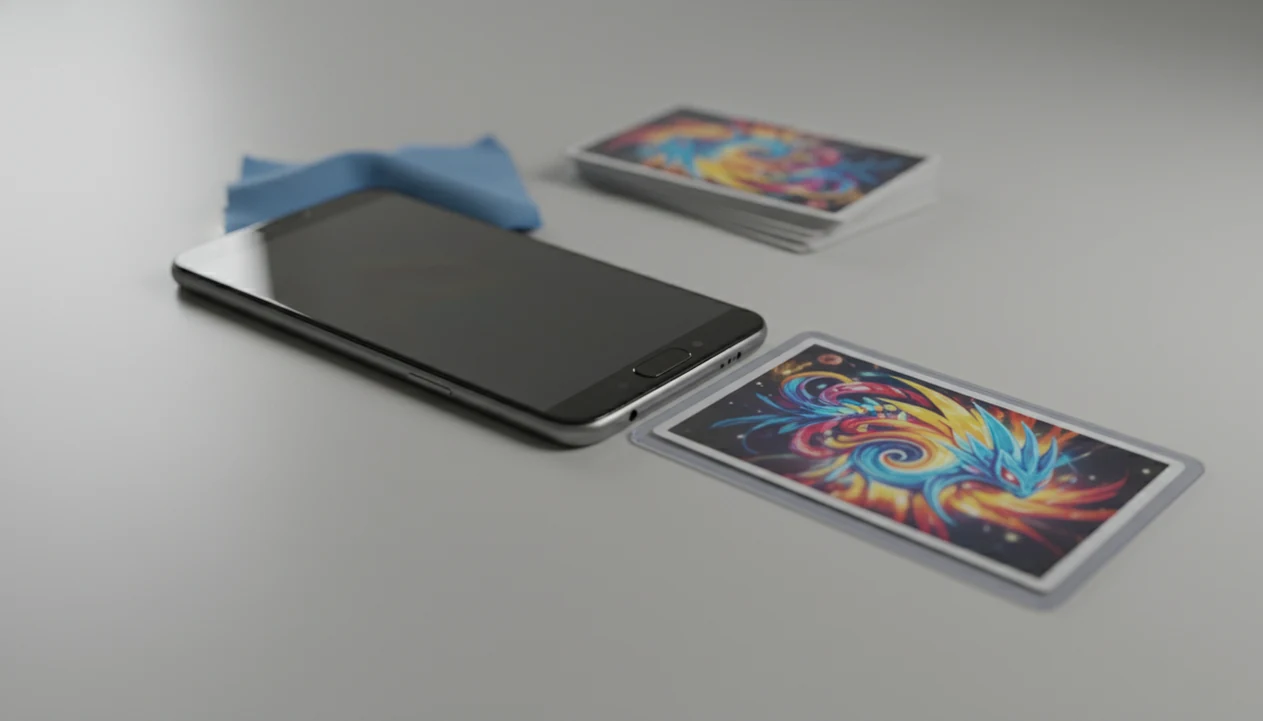
The best way to learn how to scan pokemon cards on android is to use a card-scanner app with camera permission enabled, place the card flat in clean light, and verify the exact set, variant, and condition before saving it. Android scanning is fastest when you treat the scan as a first pass, then confirm details that affect value.
Definition: TCG Pocket App is a pokemon card scanner app that identifies cards, checks market prices, and tracks collections for Pokémon TCG collectors.
TL;DR
- Android Pokémon card scanning works best with camera permission, steady focus, a plain background, and glare-free lighting.
- Physical-card scanner apps are mainly for identification, pricing, and collection tracking; official gameplay apps may only scan code cards.
- Always verify the card’s set, number, variant, language, and condition before trusting a saved value.
What an Android Pokemon Card Scanner Actually Does
An Android Pokémon card scanner is an app that uses your phone camera to identify and log physical Pokémon cards. It is built for collecting tasks, not for turning your binder into a playable digital deck.
Most collection scanners look at the card image, suggest a matching print, then let you save it with quantity, condition, storage location, and price context. That is different from Pokémon TCG Live, where camera scanning is for code-card redemption. A code card unlocks digital products; a scanned Charizard from your binder does not become a playable card in Live.
TCG Pocket App belongs to the collection-management side of that workflow: it can speed up identification, show price context, and keep a phone-sized inventory. It should not be treated as grading, authentication, or a promise that a card will sell at the shown price.
Five Facts Before Android Users Scan Pokemon Cards
- Camera permission is required. If Android blocks camera access, the scanner cannot capture the card at all.
- Lighting changes results. Clean indirect light, a flat card, and a simple background help the app find edges and text.
- Scanner matches are suggestions. A scan can confuse two similar Pikachu prints until the set symbol and number are checked by hand.
- Prices need context. Estimates depend on condition, variant match, market source, and how often the app updates data.
- Gameplay scanning is separate. Physical-card scanning does not usually add cards to Pokémon TCG Live gameplay.
The set number check matters most when two prints share the same artwork. I usually check the lower-left corner before trusting any price match.
Tiny print decides big differences.
Android Phone Setup For Pokemon Card Scanning
Does an Android Pokémon card scanner need special setup? Yes, but it is mostly camera access, lighting, and a clean workspace.
Install a scanner app designed for Pokémon TCG collection management, then allow camera permission when Android asks. If you skipped the prompt, open Android Settings, find the app, and enable Camera under permissions. Wipe the lens too. Pocket lint makes card text look softer than you expect.
Use bright indirect light and a plain matte surface. A patterned playmat, shiny table, or crowded binder page can make edge detection worse. If a sleeve throws glare across the name, set number, or border, remove it carefully unless the card is valuable or fragile. For binder workflows, our how to scan pokemon cards through binder sleeve guide covers glare and sleeve tradeoffs in more detail.
How Android Pokemon Card Scanning Works Behind The Camera
Android Pokémon card scanning works by capturing an image, finding the card edges, reading visible features, and comparing them with a card database. The app may use image recognition, optical character recognition, or both. In plain terms, it looks for the card’s shape, art, text, and layout.
The strongest match signals are the card name, set symbol, collector number, artwork, rarity area, and border layout. Those details help separate a regular print from a promo, reverse holo, or alternate-art version. Ring-light glare bouncing off a reverse holo through a nine-pocket binder page can hide exactly the detail the app needs.
Blur, shadows, bowed cards, and thumbs covering corners lower confidence. Pricing happens after identification. The app first decides what card it thinks it sees, then looks up price data for that card record.
How To Use An Android Pokemon Card Scanner
For most collectors, scanning one card at a time is easier than bulk guessing because each saved record can be verified before it affects your collection value.
- Set the card on a plain, flat, well-lit surface with the full border visible.
- Open the scanner app and allow Android camera access if prompted.
- Center the whole card inside the scan frame and hold the phone steady.
- Review the suggested match for set, collector number, variant, and language.
- Add condition, quantity, and storage location before saving the card.
- Check the price estimate only after the identity and condition are correct.
For higher-value cards, photograph the back immediately after the front so your condition notes stay tied to the same card. That extra 10 seconds is easier than fixing a mislabeled binder row later.
When scanning a stack, keep a small duplicate pile beside the laptop or sorting tray. It stops you from saving the same card three times by accident. If you prefer broader phone workflows, the general how to scan pokemon cards with phone guide covers both Android and iPhone habits.
Physical Pokemon Card Scanning Vs Code Card Scanning On Android
Physical card scanning and code-card scanning solve different problems. A collection scanner helps identify, price, and organize cards you own; a code-card scanner redeems a printed code for digital content.
Pokémon’s own support materials frame code cards as redemption codes for digital Pokémon TCG Live content, not as a way to import scanned physical cards into gameplay (Pokémon Support).
| Scan type | Purpose | Result | Limitation |
|---|---|---|---|
| Physical card scan | Collection tracking | Card is identified and saved to inventory | Match still needs variant and condition checks |
| Code card scan | Digital redemption | Code is redeemed in a supported app | Does not log the physical card |
| Pokémon TCG Live scan | Code-card redemption | Digital product is added to the account | Does not scan a binder card into gameplay |
| Binder scan | Faster cataloging | Multiple cards may be reviewed or logged | Glare and sleeve plastic can reduce accuracy |
Collectors who care about binders, prices, and inventory usually need a collection scanner. Pokémon TCG Live is not a substitute for that job.
Pokemon Card Variant And Condition Checks After An Android Scan
After an Android scan, verify the card name, set symbol, collector number, rarity, language, and artwork before saving the result. The scan is the shortcut; the variant match is the quality control.
Look for holo, reverse holo, full art, promo stamp, alternate art, and special set markings. A raw card beside a plastic slab may share the same name, but the market context is different. Condition also has to be entered carefully. Whitening, dents, scratches, and centering affect value in ways a normal camera scan may not judge well.
Scanner value is an estimate, not a guaranteed sale price. For high-value cards, compare actual sold listings, not only active asking prices. The green sold-price filter on eBay tells a different story than an optimistic checkout tab. For a more defensible estimate, compare at least one marketplace price guide such as TCGplayer’s Pokémon price guides (source) with sold-item research on eBay (source). For deeper pricing workflows, use a best app for pokemon card prices guide alongside sold-listing research.
Common Android Pokemon Card Scanner Mistakes
- Harsh overhead glare: Bright reflections can wash out the name, foil pattern, or set number.
- Busy backgrounds: Playmats, binder art, and patterned tables make card-edge detection less reliable.
- Unsteady phone position: Holding the phone too close, tilted, or moving can blur small collector numbers.
- First-match saving: The first suggestion may be the wrong set, language, or variant.
- Feature assumptions: Some apps limit free scans, exports, live pricing, or portfolio tools.
- Authentication expectations: A normal scanner should not be treated as counterfeit detection.
Price sticker curling on a top loader at a card show can also block a corner. Peel nothing in a hurry. Just angle the scan or enter the card manually.
Android Pokemon Card Scan Verification Checklist
Did the Android scan choose the right Pokémon card? Confirm the app selected the correct card and set before it enters your collection database.
Check that the variant and language match the physical card. Enter condition honestly instead of relying only on a camera image, especially for edge wear or surface scratches. Add quantity and storage location so your binder-friendly scan becomes useful later, not just a loose price lookup.
Rescan in better lighting if the match looks uncertain. Smartphone ownership makes this workflow practical for many collectors; Pew Research reported that 85% of U.S. adults own a smartphone in 2024 source. If you are building around binders, the best pokemon card scanner for binders guide focuses on storage-first scanning.
Limitations
Android scanners are useful speed tools, but they have clear limits.
- They do not guarantee correct identification for worn, warped, blurry, or partially obscured cards.
- Price estimates are approximate and depend on condition, data source, currency, and recent sales.
- Official gameplay apps generally do not turn scanned physical cards into playable digital cards.
- Scanner apps are not reliable authentication tools for fake-card detection.
- Free tiers may limit scan volume, exports, live pricing depth, or collection features.
- High-value cards still need manual set verification, sold-listing research, and grading context.
- Foil variants can be misread when glare hides texture, stamps, or reverse-holo patterns.
Treat the app result as a starting point, not the final word. That one habit prevents most expensive cataloging mistakes.
FAQ
Can Android scan Pokemon cards?
Yes. Android phones can scan Pokémon cards through compatible scanner apps that use the phone camera for identification, pricing, and collection logging.
What app scans Pokemon cards?
Use a Pokémon TCG collection scanner with card identification, pricing, and inventory features. Apps such as TCG Pocket App, Collectr, and other collection tools are built for that type of workflow.
Can Pokemon TCG Live scan cards?
Pokémon TCG Live can scan code cards for redemption. It does not scan a physical Pokémon card into the game as a playable card.
Why will my Android scanner not focus on a Pokemon card?
Common causes include a dirty lens, low light, glare, phone movement, wrong distance, or blocked camera permission. Move the phone back slightly and use brighter indirect light.
Do Pokemon card scanners show card value?
Many scanners show price estimates. Values still depend on condition, variant, language, market source, and recent sold-listing context.
Can Pokemon card scanners detect fake cards?
Ordinary scanner apps should not be treated as authentication tools. Use manual inspection, expert review, or grading-company context for suspected counterfeits.
Should I scan Pokemon cards in sleeves?
Sleeves are fine if the card text and edges remain clear. If glare or plastic wrinkles block details, remove the card carefully before scanning.
How accurate are Pokemon card scanners on Android?
Accuracy is usually good with sharp, well-lit photos and visible set details. It is weaker with blur, glare, damage, obscured corners, or rare variants.